Disclaimer: Computers and Technology News Digest. This site provides computers and technology content for informational purposes only.
Key Takeaways:
- Optimize existing RAM before spending money: Close background apps, disable unnecessary startup programs, and clear system caches to free up memory.
- Use virtual memory effectively: Adjust page file settings on Windows or free up disk space on Mac to let your system use storage as temporary RAM.
- Affordable RAM upgrades are possible: Check your laptop’s max capacity, consider second-hand modules, and match specifications to save money.
- Easy DIY RAM installation steps: Power off your laptop, remove the back panel, install the RAM module correctly, and verify it’s recognized.
- Alternative solutions for older laptops: ReadyBoost with a USB drive can provide a small performance boost when physical upgrades aren’t feasible.
- Maintain RAM efficiency long-term: Regularly restart, update software, scan for malware, manage browser tabs, and consider SSD upgrades for smoother performance.
If your laptop is starting to feel sluggish, apps take forever to open, or multitasking is a nightmare, you’re probably thinking about upgrading your RAM. But what if you don’t want to blow your budget on expensive hardware upgrades? The good news is there are several ways to get more RAM on your laptop without spending a fortune. In this article, we’ll break down practical tips, software tricks, and inexpensive hardware solutions to boost your laptop’s memory and performance.
What Is RAM and Why Does It Matter?
RAM, or Random Access Memory, is the short-term memory your laptop uses to store data that’s actively being used. Think of it as your laptop’s workspace: the bigger it is, the more tasks it can handle at once without slowing down. Insufficient RAM can lead to lag, freezing, or even crashing apps, especially when you’re running resource-heavy programs like Photoshop, video editors, or multiple browser tabs.
More RAM doesn’t always mean your laptop will magically become faster, but it does improve multitasking and helps your system handle larger files efficiently.
Can You Increase RAM Without Physically Installing More?

Yes! While physically adding RAM is the most straightforward approach, there are ways to “free up” and optimize existing memory that effectively gives you more usable RAM without touching your hardware. Here are some smart strategies:
- Close unnecessary background apps: Many apps run quietly in the background, consuming RAM without you noticing. Use Task Manager on Windows or Activity Monitor on Mac to see what’s hogging memory.
- Disable startup programs: Some programs start automatically when your laptop boots, using precious RAM. Disabling unnecessary startup apps can free up a significant amount of memory.
- Clean your system cache: Temporary files, browser caches, and old system logs can take up memory space. Regularly clearing cache can help your laptop breathe.
- Use lightweight alternatives: If certain apps are heavy on memory, consider lighter alternatives. For instance, switch from a resource-heavy browser to a lighter one when possible.
While these tricks don’t physically add RAM, they maximize the efficiency of the memory you already have, often giving you the performance boost you need.
How to Use Virtual Memory to Get More RAM
Virtual memory, sometimes called a page file, allows your laptop to use a portion of your storage drive as temporary RAM. It’s slower than physical RAM but can make a noticeable difference if your system frequently runs out of memory.
Steps to Adjust Virtual Memory on Windows
- Open Control Panel and go to System.
- Click Advanced system settings.
- Under Performance, click Settings.
- Go to the Advanced tab, then click Change under Virtual Memory.
- Uncheck “Automatically manage paging file size for all drives.”
- Select a drive (usually C:) and choose Custom size.
- Set the initial size and maximum size (a good rule is 1.5–2 times your installed RAM).
- Click Set and OK, then restart your laptop.
Virtual Memory on Mac
MacOS handles virtual memory automatically, but you can still improve performance by freeing up disk space. A full drive limits your system’s ability to use virtual memory efficiently. Regularly removing unneeded files and applications can help.
Can Upgrading RAM Be Affordable?
If you’ve tried software tricks and still need more memory, physically upgrading RAM might be the next step. The good news is laptop RAM upgrades don’t have to break the bank.
How to Choose Affordable RAM
- Check your laptop’s max RAM capacity: Your laptop can only support a certain amount of RAM. Check the manufacturer’s specifications.
- Consider second-hand RAM: Buying lightly used RAM modules from trusted sources can save a lot of money.
- Match RAM specifications: Stick to the type and speed of RAM your laptop supports (e.g., DDR4, DDR5, MHz). Mismatched RAM can cause compatibility issues or underperformance.
- Buy single modules if upgradable later: If your laptop has two slots, start with one module and upgrade later. This spreads out costs.
Step-by-Step RAM Upgrade
- Power off your laptop and unplug it.
- Remove the back panel (usually secured with screws).
- Locate the RAM slots.
- Release the existing module by gently pushing the clips on the sides.
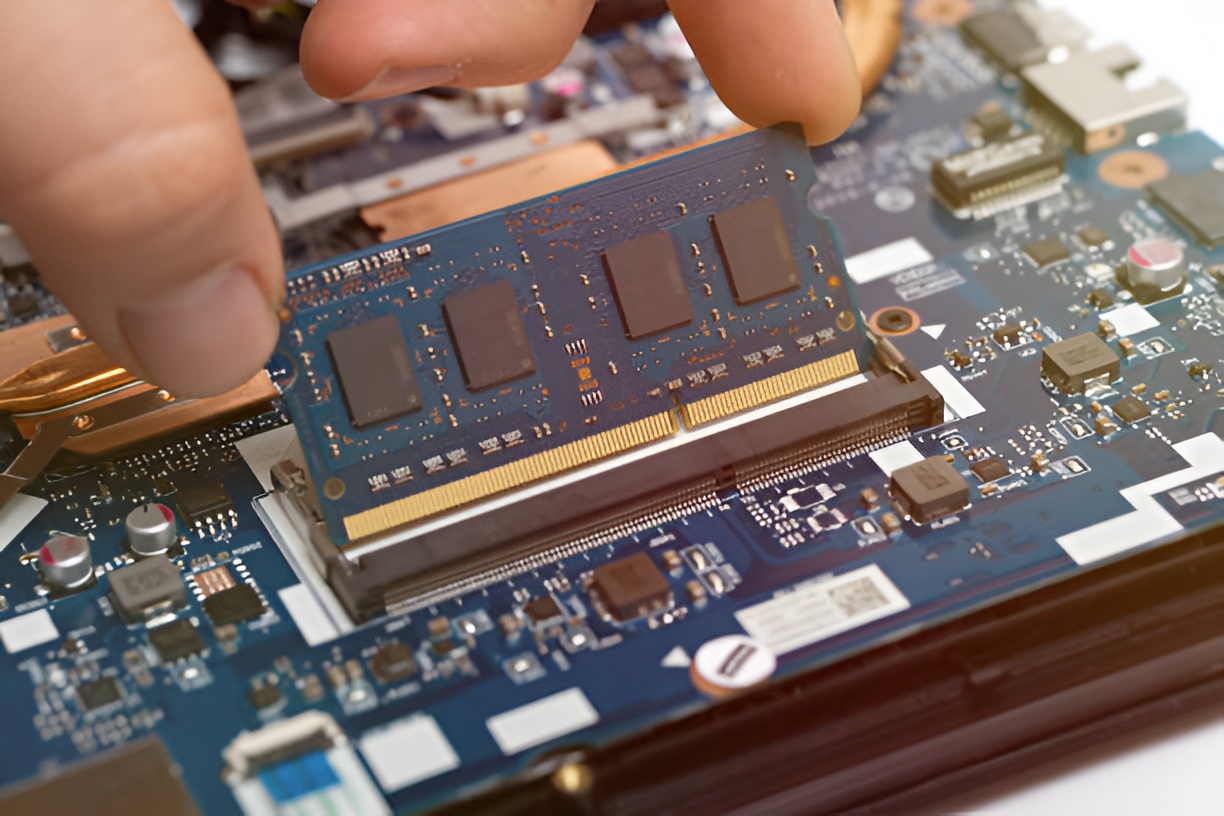
- Insert the new RAM module at a slight angle until it clicks into place.
- Replace the back panel, power on, and check if the system recognizes the new memory.
Even a modest upgrade from 8GB to 16GB can dramatically improve multitasking and speed for most users, and the cost is often less than $50–$70 for mainstream modules.
What About Using USB Drives as RAM?
Some laptops allow you to use a USB drive to increase virtual memory through a feature called ReadyBoost (Windows only). It’s not a replacement for physical RAM but can help if your system is struggling with small tasks.
How to Set Up ReadyBoost
- Insert a USB drive (minimum 8GB recommended).
- Right-click on the drive in File Explorer and select Properties.
- Go to the ReadyBoost tab.
- Choose Use this device and allocate the space for ReadyBoost.
- Click Apply and OK.
This is a cheap and easy solution for older laptops that can’t handle physical RAM upgrades, but modern SSD-based laptops may see limited benefits since SSDs are already fast.
How Can You Keep Your Laptop RAM Efficient?

Even after upgrading or optimizing RAM, it’s important to maintain your system to keep it running smoothly.
- Regularly restart your laptop: Restarting clears temporary memory and can fix slowdowns.
- Avoid heavy browser tabs: Each tab consumes RAM. Limit open tabs or use a lightweight browser extension to manage them.
- Update software: System and app updates often include memory optimizations.
- Scan for malware: Viruses and malware can consume memory in the background. Keep your laptop protected.
- Consider SSD upgrades: While not directly increasing RAM, an SSD speeds up virtual memory operations, giving your system a smoother experience.
Can You Get More RAM on a Laptop Without Tools?
Yes. If you want to avoid tools or extra purchases, software solutions are the safest bet. Focus on cleanup, optimization, and smarter multitasking habits:
- Close memory-heavy applications when not in use.
- Keep startup programs to a minimum.
- Optimize your operating system’s virtual memory settings.
- Use browser extensions that suspend inactive tabs.
These small changes can make your laptop feel faster without opening it up or buying anything.
Should You Upgrade RAM Yourself or Get a Professional?
If your laptop allows easy access to RAM slots, upgrading it yourself is straightforward. However, if your laptop is ultrathin or uses soldered RAM (common in ultrabooks), installing it yourself isn’t possible. In that case:
- Consult a professional technician for advice.
- Consider trade-in programs or upgrading to a newer laptop with higher RAM.
- Explore virtual memory optimizations and software tricks to maximize existing RAM.
The key is balancing cost, risk, and performance needs.
What Are Some Common Mistakes to Avoid?
- Buying incompatible RAM modules.
- Forgetting to check maximum supported RAM.
- Ignoring software optimization before spending money.
- Expecting USB ReadyBoost to replace real RAM.
- Neglecting routine system maintenance, which can waste RAM even after upgrades.
Avoiding these mistakes ensures you get the best performance for your investment.
How Much RAM Do You Actually Need?
Before learning how to upgrade RAM, it’s important to know how much memory your laptop really needs. The amount of RAM you need depends on your usage:
- 4–8GB: Basic tasks like browsing, streaming, and word processing.
- 8–16GB: Gaming, photo editing, and moderate multitasking.
- 16–32GB: Video editing, 3D design, and heavy multitasking.
- 32GB+: Professional workloads with multiple virtual machines or extremely resource-heavy applications.
Optimizing RAM usage is just as important as adding more. Sometimes better management beats simply increasing hardware.
Wrapping It Up
Getting more RAM on a laptop doesn’t have to drain your wallet. By combining smart software practices, inexpensive hardware upgrades, and system maintenance, you can boost your laptop’s performance significantly. Start with optimization tricks, consider virtual memory adjustments, and if needed, add physical RAM carefully and affordably.
Remember, the goal isn’t just more RAM—it’s better performance, smoother multitasking, and a laptop that keeps up with your work and entertainment needs. With the strategies outlined above, you can achieve all of this without spending a fortune.