Disclaimer: Computers and Technology News Digest. This site provides computers and technology content for informational purposes only.
Highlights:
- Upgrading RAM is one of the easiest and most cost-effective ways to improve computer performance, including multitasking, gaming, and creative work.
- The amount of RAM you need depends on usage: 8GB for basic tasks, 16GB for gaming, and 32GB+ for heavy multitasking or creative software.
- Most desktops and many laptops allow RAM upgrades, but ultrathin laptops and some all-in-ones may have soldered memory that cannot be replaced.
- Proper installation is crucial: turn off your device, handle modules carefully, install RAM in the correct slots, and verify it’s recognized by your system.
- Maintaining system performance after upgrading includes closing unused apps, keeping software updated, running antivirus scans, cleaning dust from RAM slots, and monitoring memory usage.
- Troubleshooting common issues like unrecognized RAM, crashes, or system errors often involves reseating modules, testing sticks individually, and checking BIOS settings.
- Choosing the right RAM (type, speed, capacity, and form factor) and combining upgrades with SSDs or system cleanup can maximize overall computer performance.
Upgrading your RAM is one of the easiest and most cost-effective ways to boost your computer’s performance. Whether you’re trying to make your old laptop faster or give your desktop a new lease on life, increasing memory can make multitasking smoother, speed up software, and improve overall efficiency. In this guide, we’ll walk you through everything you need to know about how to upgrade RAM in laptops and desktops easily.
Why Should You Upgrade Your RAM?
Before diving into the “how,” it’s worth understanding why upgrading RAM matters. RAM, or Random Access Memory, is your computer’s short-term memory. It temporarily stores the data your CPU uses to run programs. The more RAM you have, the more tasks your computer can handle at once without slowing down.
- Improved multitasking: More apps open simultaneously without lag.
- Faster performance: Programs load quicker, and large files handle better.
- Better gaming: Modern games require more RAM for smooth gameplay.
- Longer device lifespan: Helps older computers stay functional longer.
If you notice slow app loading, system freezes, or frequent “not enough memory” warnings, it’s probably time to upgrade your RAM.
How Much RAM Do You Actually Need?
Not all computers need the same amount of RAM. Here’s a quick guide:
- Basic tasks: Browsing, streaming, word processing – 8GB is usually enough.
- Gaming: 16GB is ideal for most modern games.
- Creative work: Video editing, 3D rendering, or large photo files – 32GB or more.
- Heavy multitasking: Running multiple virtual machines or heavy software – 32GB+.
Tip: Check your system’s maximum RAM capacity before buying new modules. Installing more than your computer supports is a waste of money.
Can You Upgrade RAM Yourself?
Absolutely! Most modern desktops are designed to make RAM upgrades easy, and many laptops also allow for upgrades. However, some ultrathin laptops and certain all-in-one devices may have soldered RAM, which cannot be replaced. Always check your device’s specifications before buying RAM sticks.
What Tools Do You Need?
You don’t need a lot to upgrade RAM, but a few tools can make the process smoother:
- Small Phillips screwdriver
- Anti-static wrist strap (optional but recommended)
- Your new RAM modules
- Your computer’s manual for reference
Keeping the workspace clear and static-free helps prevent accidental damage.
How to Upgrade RAM in a Desktop: Step-by-Step
Upgrading RAM in a desktop is usually the simplest hardware upgrade you can do. Desktop cases are typically spacious and modular, making installation easier than in laptops. Follow these steps carefully:
- Turn off your computer and unplug it. Safety first. Shut down your PC completely and disconnect all cables, including power, monitor, keyboard, and mouse. This prevents any electrical damage or accidental shocks while working inside.
- Open the case. Most desktop cases have screws at the back that secure the side panels. Remove them and slide off the panel to access the interior. Some modern cases use tool-free mechanisms with clips or latches—check your case’s manual.
- Locate the RAM slots. The RAM slots are long, thin, and usually positioned near the CPU. Look for small clips on each end of the slot. Depending on your motherboard, there may be two, four, or even eight slots.
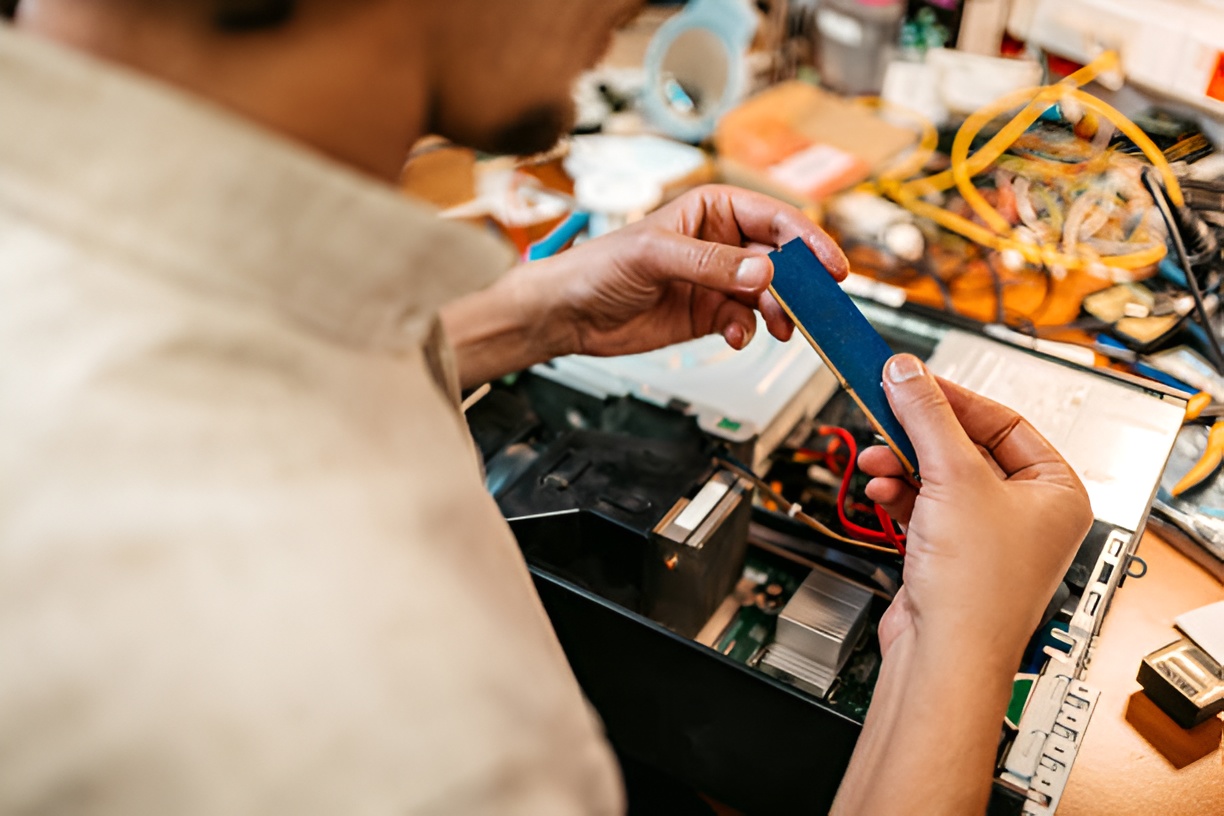
- Remove existing RAM (if necessary). If you’re replacing older modules or rearranging, push the side clips outward to release the RAM stick. It should gently pop up at an angle. Remove it carefully without touching the gold contacts.
- Install the new RAM. Align the notch on the RAM stick with the ridge in the slot. Slide it in at a slight angle (around 30–45 degrees) and press down firmly until the clips snap into place. You should hear or feel a soft click. Never force it, as this can damage the module or motherboard.
- Close the case and reconnect cables. Replace the side panel, secure it with screws or clips, and reconnect all cables. Make sure nothing is loose inside that could interfere with fans or other components.
- Turn on your computer and check if the system recognizes the new RAM. Boot into your operating system and confirm the new memory is detected. On Windows, open Task Manager → Performance → Memory. On macOS, check Apple menu → About This Mac → Memory.
Tips for Desktop RAM Upgrades
- Install RAM in matching pairs for dual-channel performance, which improves speed and efficiency.
- Avoid touching the gold contacts to prevent static damage.
- Consult your motherboard manual for the correct RAM type, speed, and maximum capacity.
- Keep the workspace organized to avoid dropping screws or modules inside the case.
How to Upgrade RAM in a Laptop: Step-by-Step
Laptop RAM upgrades require a bit more care because space is limited and components are compact. Many laptops allow upgrades, but some ultrathin models may have soldered memory that cannot be replaced.
- Turn off the laptop and remove the battery (if possible). Shut down the device completely. For laptops with removable batteries, remove it to prevent accidental power-on.
- Locate the RAM compartment. Flip your laptop over. Many have a dedicated panel secured with one or more screws. Some ultrathin laptops hide the RAM under the main back cover. Refer to your laptop manual for exact location.
- Open the panel and ground yourself. Touch a metal object or wear an anti-static wrist strap to discharge any static electricity. This prevents damaging sensitive components.
- Remove the existing RAM stick (if needed). Push the side clips outward. The module should pop up at an angle. Gently lift it out without bending it or touching the gold connectors.
- Insert the new RAM. Align the notch in the RAM with the slot, insert at a 45-degree angle, then press down gently until the side clips lock. Make sure it is seated evenly.
- Close the panel and reinsert the battery. Replace the panel and screws securely, then reinstall the battery if you removed it.
- Boot up and check your system info. Confirm the laptop recognizes the new memory. On Windows, check Task Manager → Performance → Memory; on macOS, About This Mac → Memory.
Tips for Laptop RAM Upgrades
- Check the number of RAM slots. Some laptops have only one slot, limiting expansion.
- Use compatible RAM type and speed (DDR3, DDR4, DDR5). Installing incorrect modules can prevent the laptop from booting.
- Soldered RAM cannot be upgraded. Ultrabooks or MacBooks often have memory permanently attached, so double-check before buying modules.
- Handle components carefully. Laptop interiors are compact, so avoid forcing modules or touching other delicate components.
How to Check if Your Computer Recognizes the New RAM
Once installed, it’s important to verify the RAM is detected:
- Windows: Press Ctrl + Shift + Esc → Task Manager → Performance → Memory.
- Mac: Click the Apple logo → About This Mac → Memory.
- Linux: Open terminal and type free -h or cat /proc/meminfo.
If the new RAM doesn’t show up, double-check the installation or try reseating the modules.
Common Mistakes to Avoid When Upgrading RAM
Even simple upgrades can go wrong. Avoid these pitfalls:
- Buying incompatible RAM (wrong type or speed)
- Touching the RAM contacts with bare hands
- Installing RAM in the wrong slot
- Ignoring your system’s maximum RAM limit
A little preparation goes a long way toward a smooth upgrade.
Should You Upgrade RAM or Replace Your Computer?
Upgrading RAM can make a huge difference, but it’s not always the solution. Consider:
- Age of the CPU and storage drive
- Number of programs and multitasking needs
- Cost of RAM versus buying a new machine
If your system is over five years old, sometimes a full upgrade may provide better performance than just adding memory.
How to Maintain Your RAM and System Performance

Upgrading your RAM gives your computer a big performance boost, but to get the most out of it, you still need to maintain your system properly. With a few simple habits, you can ensure your new memory keeps your computer running smoothly for years.
- Close unused programs and browser tabs. Every open app or browser tab uses memory. Even with more RAM, running too many programs at once can slow your system. Make it a habit to close applications you aren’t actively using, and consider using browser extensions that suspend idle tabs.
- Keep your system updated. Operating system updates, driver updates, and software patches often include performance improvements and bug fixes. Regular updates help your RAM and CPU work efficiently with the latest software.
- Run antivirus and malware scans regularly. Malware can consume system resources in the background, slowing your computer and affecting RAM performance. Schedule weekly scans with your antivirus program or a trusted malware removal tool to keep your system clean.
- Occasionally clean the RAM slots and fans. Dust can accumulate inside desktops and laptops over time, interfering with heat dissipation and even causing your RAM or CPU to throttle. Use compressed air to blow dust from RAM slots, fans, and vents every few months. Always power down and unplug your device before cleaning.
- Monitor system performance: Use built-in tools like Task Manager (Windows) or Activity Monitor (Mac) to see how your RAM is being used. If certain programs constantly consume excessive memory, consider alternatives or updates that are less resource-heavy.
- Avoid unnecessary background processes: Many programs run background services that consume memory without your knowledge. Disable startup programs you don’t need and manage background apps through your system settings for smoother performance.
By following these habits, your upgraded RAM won’t just sit there—you’ll maximize its impact, keeping your computer responsive and efficient for years to come.
Can You Mix Different RAM Brands and Speeds?
Yes, but it’s not ideal. Mixing RAM with different speeds can lead to:
- System instability or crashes
- Reduced performance to match the slowest module
- BIOS compatibility issues
If possible, use matching RAM kits for the best results.
How to Troubleshoot RAM Upgrade Issues
Even with the simplest RAM upgrades, things don’t always go perfectly. If your computer isn’t behaving as expected after adding new memory, don’t panic. Here’s a step-by-step guide to troubleshoot common issues.
1. Computer Won’t Boot
If your PC doesn’t start or fails to reach the operating system:
- Power down and unplug your computer.
- Reseat the RAM sticks by carefully removing them and reinstalling them in the correct slots. Make sure they click securely into place.
- Check slot compatibility – some motherboards require RAM to be installed in specific slots for proper dual-channel performance. Refer to your motherboard manual for guidance.
- Try one stick at a time to see if a particular module is causing the problem.
2. Frequent Crashes or Blue Screens
Random crashes, freezes, or Blue Screens of Death (BSODs) are often linked to faulty or incompatible RAM:
- Test each RAM stick individually by installing one module at a time and running your system. This helps identify a defective stick.
- Use diagnostic tools like MemTest86 or Windows Memory Diagnostic. These programs scan your RAM for errors and report any problems.
- Check for proper voltage and speed settings in BIOS. Sometimes mismatched settings can cause instability.
3. System Shows Less RAM Than Installed
If your system recognizes less memory than you installed:
- Ensure the modules are fully seated in their slots. Even slightly loose RAM can cause recognition issues.
- Check BIOS/UEFI settings – some systems require manual configuration for new RAM, especially if mixing speeds or sizes.
- Confirm your OS supports the installed memory – for example, 32-bit versions of Windows can only use around 4GB of RAM, no matter how much is installed.
4. Other Considerations
- Mixing RAM brands or speeds can occasionally cause conflicts. If problems persist, try using identical sticks from the same kit.
- Soldered RAM or incompatible modules can’t be fixed by reseating. Always double-check your device’s specs before buying new RAM.
- Static electricity can damage RAM during installation. If a stick isn’t working, it could have been exposed to static. Ground yourself before handling components.
How to Choose the Right RAM for Your Device
Selecting the correct RAM is critical. Consider:
- Type: DDR3, DDR4, DDR5 – depends on your motherboard/laptop specs.
- Speed: Higher MHz can improve performance but must match system capability.
- Capacity: Total GB based on your needs (8GB, 16GB, 32GB+).
- Form factor: DIMM for desktops, SO-DIMM for laptops.
Check your system manual or manufacturer website to confirm compatibility.
Benefits You’ll Notice After Upgrading RAM
After successfully upgrading RAM, you can expect:
- Faster boot times
- Smoother multitasking
- Better gaming or creative software performance
- Fewer system freezes or crashes
The difference is often immediately noticeable, especially on older devices.
When to Consider Professional Help
Most RAM upgrades are straightforward, but professional assistance might be needed if:
- Your device has soldered RAM
- You’re uncomfortable opening your laptop or desktop
- You encounter persistent errors after installation
Professional service ensures the upgrade is done safely without voiding warranties.
How to Upgrade RAM and Optimize Your Computer Together
RAM upgrades are just one part of improving performance. Combine it with:
- SSD upgrades: Faster storage improves overall system responsiveness.
- Regular software updates: Keeps your OS and drivers optimized.
- System cleanup: Removing bloatware and unnecessary files helps RAM work efficiently.
Together, these upgrades can make even older computers feel brand new.
Final Thoughts
Upgrading your RAM is one of the easiest ways to boost performance without buying a new machine. Whether it’s for gaming, creative work, or everyday multitasking, adding more memory can make a noticeable difference. By following these steps, checking compatibility, and taking a little care during installation, you can upgrade RAM in laptops and desktops easily—and enjoy a faster, smoother computing experience.